


Bootcamp Onboarding
This self-service onboarding guide is designed for new students starting their program for the first time or students returning after an extended break in their program.
In this onboarding guide, you will learn how to complete the following items:
— Setup your Microsoft 365 account
— Navigate through your Student Portal to access your email and Canvas
— Navigate through Canvas to access your online class instructional materials
Your Microsoft 365 account will serve as a centralized login to your CIAT Email, your Student Portal, and Canvas.
Pro Tip: To access any of your CIAT accounts after your initial setup, always start with the Student Portal. Once you are logged into your Student Portal, you will have links to navigate to all CIAT accounts.
Getting to the Student Portal
- In a web browser, visit the CIAT website at: www.ciat.edu. In the upper right-hand corner, click on the link “Student Portal”.
- Alternatively, you can bookmark a link to the Student Portal homepage directly at: https://learn.ciat.edu

Student Portal Homepage
- From the homepage of the Student Portal, click on the “Sign In” link in the upper right corner of your screen.

Sign In Page
- Click on the blue “School Email” button.
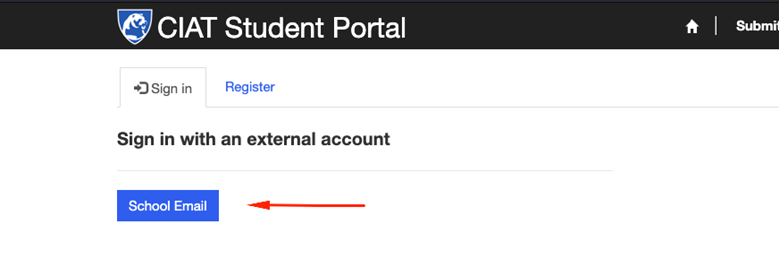
Sign In Using Your Student Email Address
- In the Sign In popup window, enter your student email account (this will be your Student ID # followed by @ciat.edu – example 880011202@ciat.edu)
- Your student ID number was provided to you via email by your Enrollment Coordinator.
Pro Tip: Can’t locate your Student ID number? Contact your Admissions Advisor, Enrollment Coordinator, or submit a support ticket.
If you have a previous Microsoft account that is not associated with CIAT, it may prepopulate here. In that case, select the “Use Another Account” option. If there is just a space to enter your username, continue.
Enter Your Default Password
- For your first time logging in, enter your default password: Welcome2CIAT
- In the following steps you will be asked to create your own unique, secure password.
Pro Tip: The letter “W” in “Welcome” and “CIAT” are capitalized.
More Information Required
After inputting your password, you will be taken to the screen shown below. This is for Multi-Factor Authentication and is required.
From here you will click next to set up the Multi-Factor Authentication.
For MFA, you will need to install the Microsoft Authenticator App. Please click Download now.
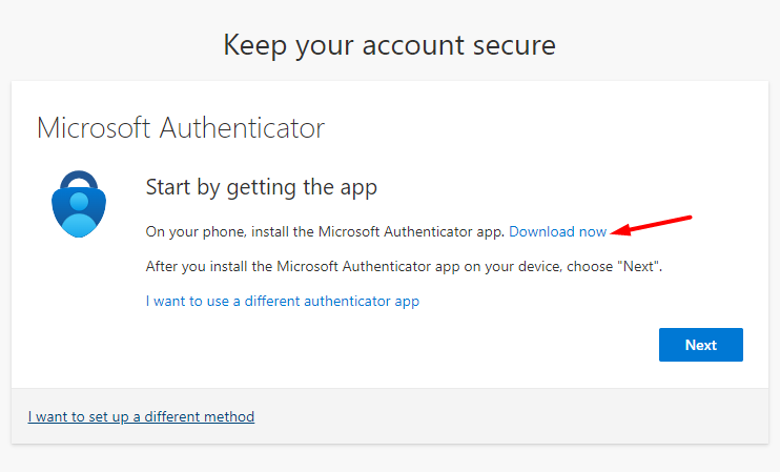
You will see QR codes available; open the camera on your phone and scan the QR code that applies to your device (either Windows/Android or Apple/iPhone).
Once you have installed the app on your phone, click Next on your computer screen.
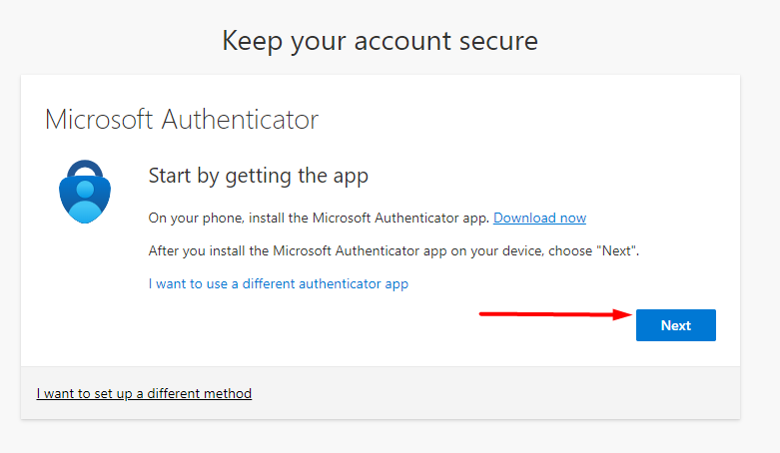
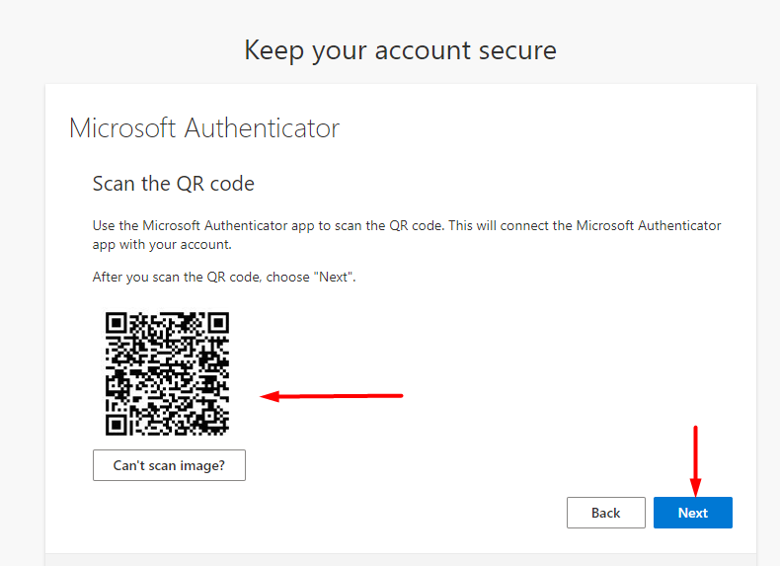
From the authenticator app, please follow the prompts to add an account, either school or work. Follow the setup instructions, then click next to scan the QR code.
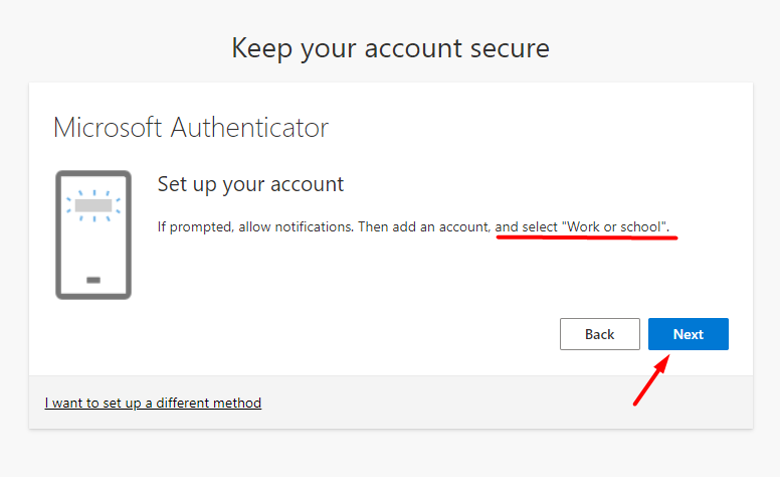
Scan the QR code presented with your phone, you’ll be using the app to scan this. Once done you should be set up to either enter the code it displays or for some, you’ll be able to use the facial recognition feature of an iPhone. Then you will be taken to the next steps.
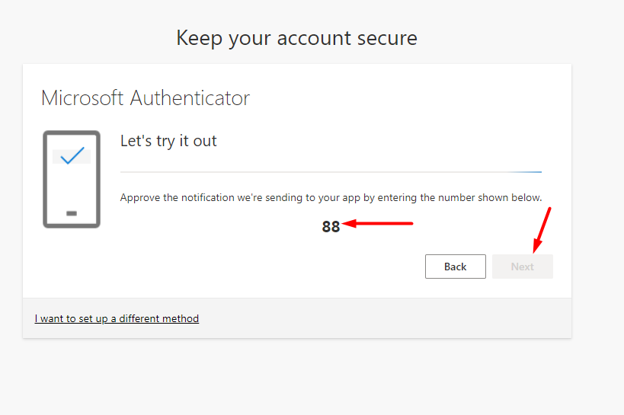
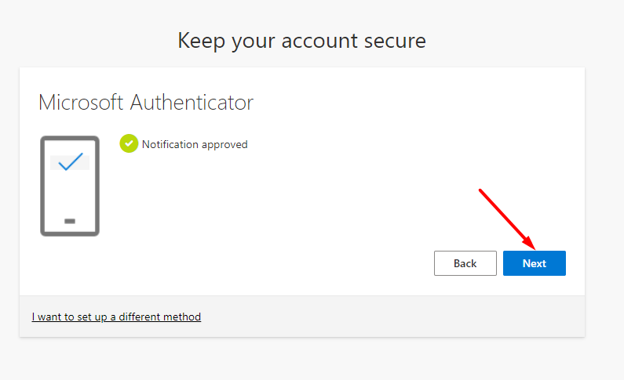
Take the number shown on your browser screen and enter it into the Authenticator app on your phone.
Create Your Unique Password
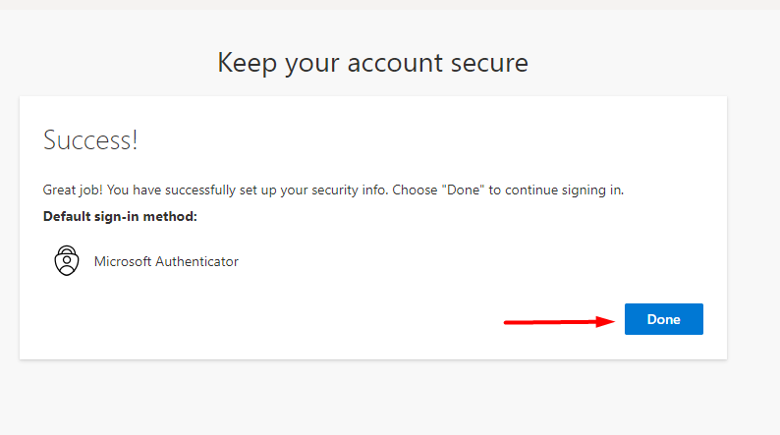
Once the Multi-Factor authentication is complete (both Option 1 and Option 2 will re-direct here, just remember you need to follow one Option all the way through to complete your authentication!) you will be asked to provide a new password for your account.
Your current password is the temporary password that was issued.
Pro Tip: If Microsoft does not accept your original submission, try replacing lowercase letters with uppercase capitals, adding numbers, and special characters. Aim for a minimum of 10 characters. For example, if you try to enter “Password” as your password, this will probably not work. Instead, you could add PA5sWorD.
* Do not use this example as your actual password *
Once you are ready to move on, please click Next.
Getting To The Student Portal:
In a web browser, visit the CIAT website at: www.ciat.edu. In the upper right-hand corner, click on the link “Student Portal”.
Alternatively, you can bookmark a link to the Student Portal homepage directly at: https://learn.ciat.edu
Student Profile Page
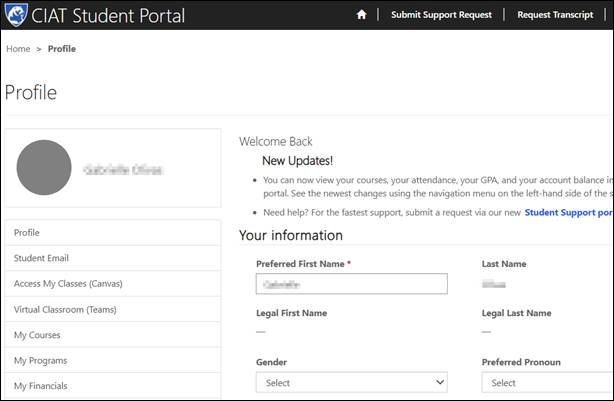
After logging in you will be taken directly to the student profile page within the Student Portal.
On the left hand side are navigation links to access your most commonly used resources, including your email, your course in Canvas, and more.
Accessing Your Student Email
Click on the link “Student Email” in the navigation bar on the left hand side of your screen. This will open a new browser tab for Outlook Online.
Pro Tip: You will notice the focused tab and the other tab right next to it. Make sure if you can’t find an email you are looking for, check the “Other” tab.
Learn more about Microsoft’s Focused Inbox feature and how to adjust the settings for your personal use: Microsoft Focused Inbox.
Accessing Your Course Through Canvas & Teams
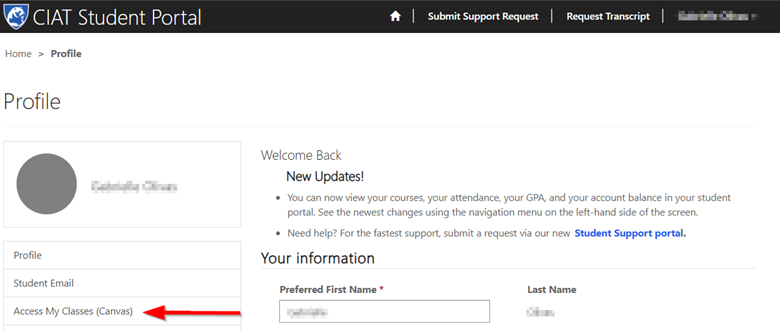
Click on the link “Access my Classes (Canvas)” in the navigation bar on the left hand side of your Student Portal. This will open a new browser tab and automatically log you into Canvas.
Pro Tip: This is the only way for you to access Canvas. If you try to go to the Canvas log in page by using the URL directly it will fail to log you in. Always start from your Student Portal to login.
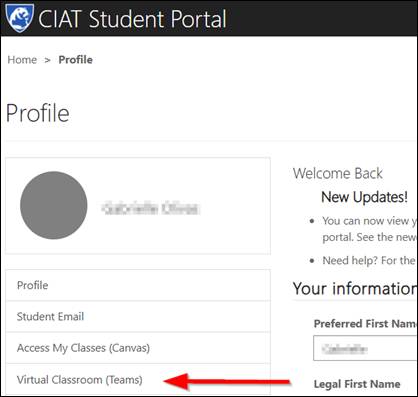
Download Microsoft Teams to your desktop. You will use Teams to access your bootcamp online sessions. You can access the virtual session through the Portal as well.
Once you are ready to move on, please click Next.
Welcome to Canvas! Canvas is your Learning Management System (LMS) and is where you will access your bootcamp, collaborate with your instructor and classmates, and more.
First Time Setup
If this is your first-time accessing Canvas you will be prompted to accept Canvas’ Acceptable Use Policy.
Check the box “I agree to the Acceptable Use Policy” and click the “Submit” button.
Canvas Dashboard
Your default page is called your Canvas dashboard.
On the left-hand side of your screen, follow the Canvas navigation links in the vertical grey bar to navigate and familiarize yourself with all features in Canvas.
Accessing Your Classes
On the bottom of your dashboard, you will see a link to each class you are taking.
Pro Tip: When you are starting your bootcamp, you should have access to your first class starting on the Friday prior to your bootcamp start date. If you have reached the start date of your program and you do not see your bootcamp here, please submit a Helpdesk ticket by emailing help@ciat.edu.
Pro Tip!
Always access Canvas through your Student Portal. You cannot access Canvas directly through the URL since it is Single Sign On (SSO).


